
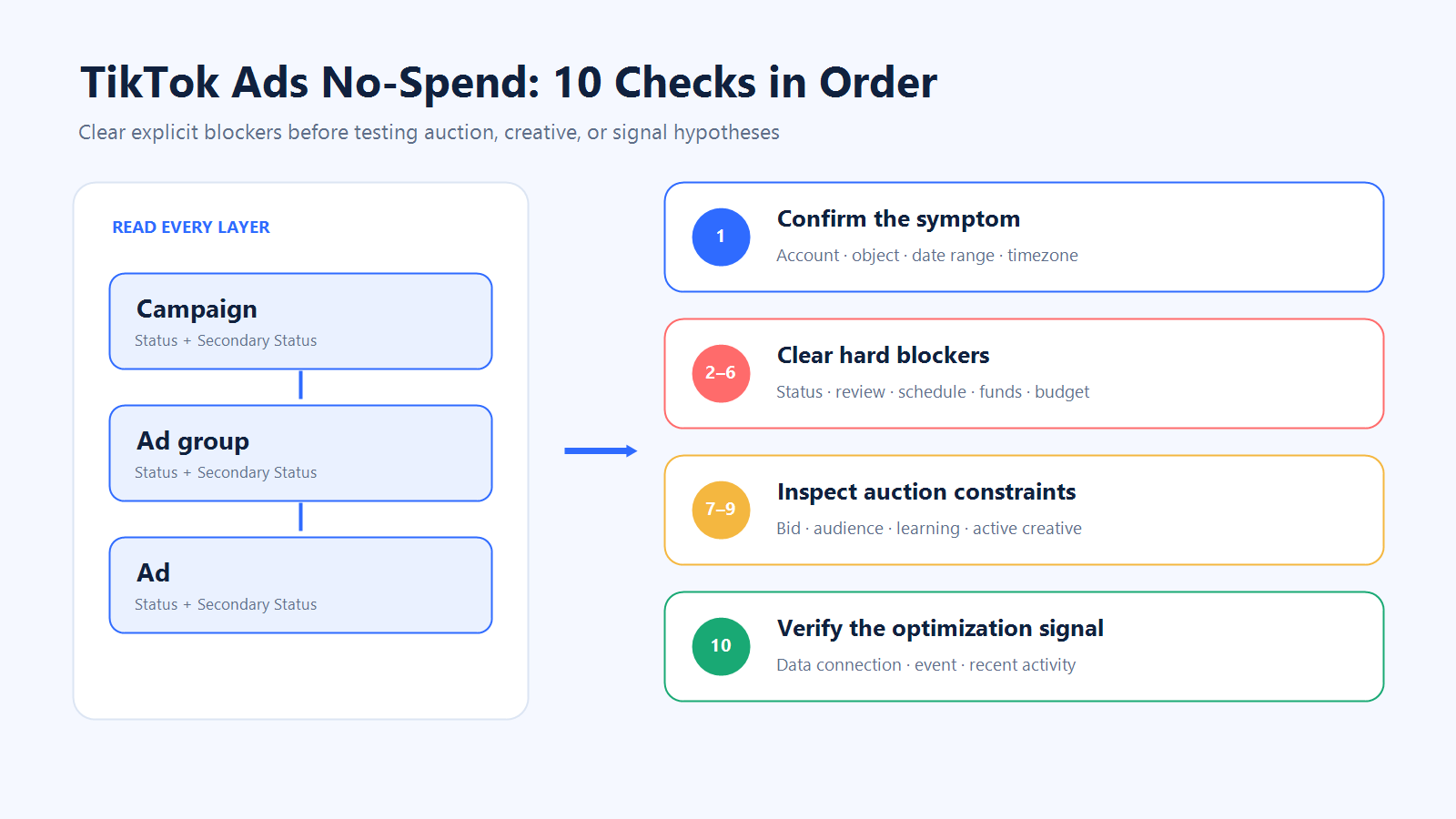
If your TikTok ad is Active but spend is still at $0, do not start by raising the budget. First confirm that you are looking at the right account, object, date range, and timezone. Then read the status and Secondary Status at the Campaign, Ad group, and Ad levels. Clear any explicit blocker before changing your bid, audience, creative, or optimization event.
This checklist is for standard auction campaigns in TikTok Ads Manager. TikTok Promote and GMV Max use different workflows, so they sit outside the main checklist; dedicated GMV Max guidance is linked below.
TikTok Ads Not Spending vs. Not Delivering
“Not spending” describes an observed symptom. “Not delivering” is a platform status that may include a reason or recommended action.
That distinction changes what you should do next:
What you see | First evidence to open | Diagnostic class | Do not change yet |
$0 spend and no impressions | Reporting scope, then all three status levels | Apparent zero spend or hard blocker | Budget, bid, audience, and creative |
Active Campaign but $0 spend | Ad group and Ad Status plus Secondary Status | Child-object blocker may exist | Campaign structure |
Some spend, but far below budget | Bid, audience, creative, learning, and delivery window | Auction or optimization constraint | Multiple variables at once |
Spend was normal, then stopped | Balance, budget, schedule, review state, and Change Log | New blocker or changed conditions | Duplicating the campaign |
Use this table to choose the first evidence to open before you edit anything.
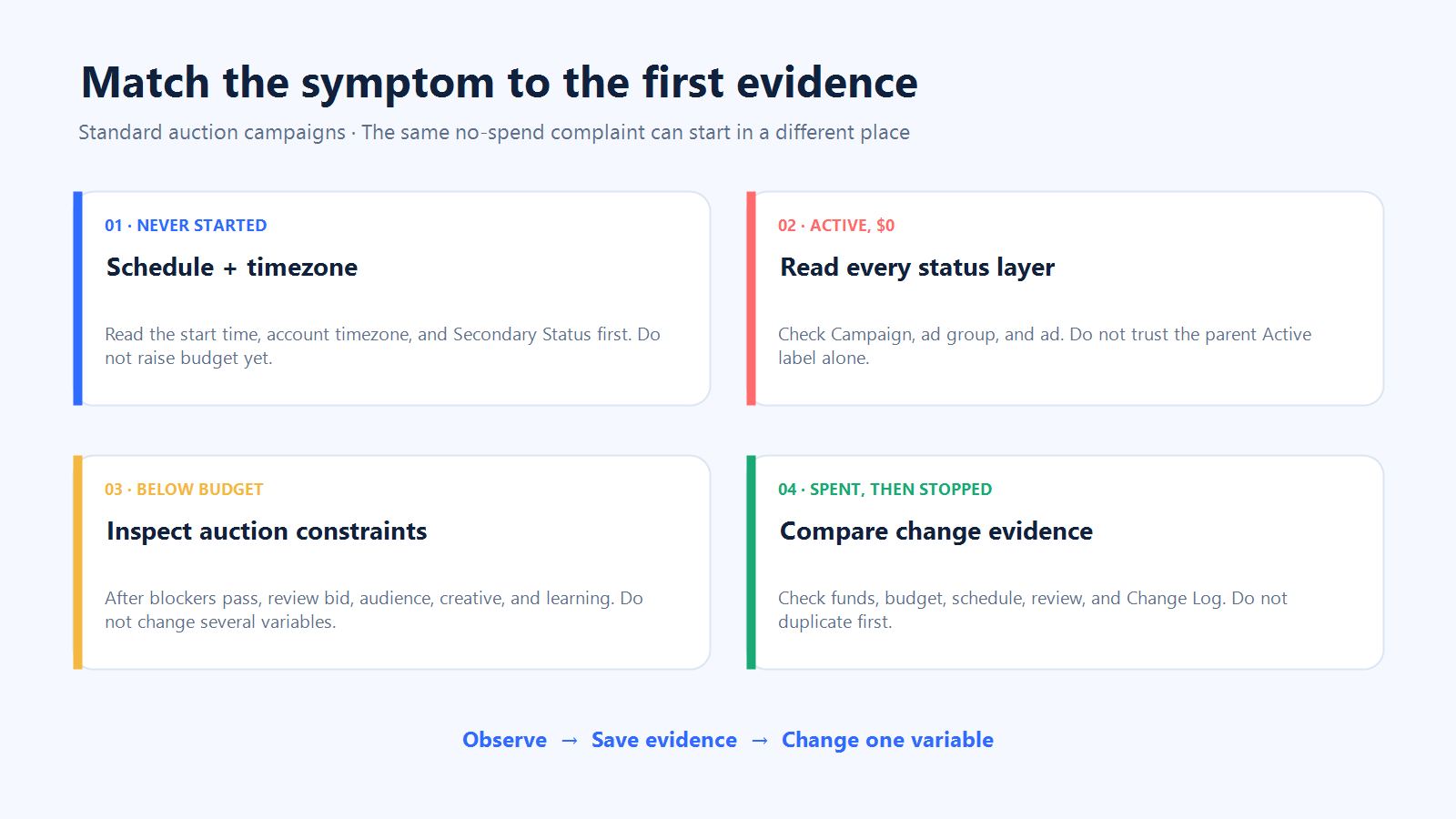
If impressions or spend exist, move from hard-blocker checks toward competitiveness and signal quality. If spend stopped, compare the last healthy period with the first affected period: what changed?
The 10 Checks, in Order
Start with reporting scope and status. Then clear any explicit hard blocker before evaluating auction or optimization-signal constraints.
1. Confirm the Date Range, Account Timezone, and Reporting View
What you see: $0 spend, no impressions, or an empty report.
What it may mean: The wrong account, object, dates, or timezone can create an apparent zero-spend problem.
Where to check: Confirm the selected account and object, report dates, account timezone, and campaign schedule. Cross-check the dashboard against billing or balance evidence.
Evidence to save: Account or object, date range, timezone, Spend, and Impressions in one screenshot.
Safe next action: Correct the view first; preserve both records if reporting and billing disagree.
Do not change yet: Budget, bid, targeting, creative, or optimization.
2. Read Campaign, Ad Group, and Ad Status Plus Secondary Status
What you see: The Campaign says Active, but spend is $0.
What it may mean: A child Ad group or Ad can still be blocked by budget, balance, review, creative, qualification, or asset status.
Where to check: Open all three levels and record each Status, Secondary Status, reason, and platform-provided action.
Evidence to save: Object names or IDs, exact status text, timestamp, and account timezone.
Safe next action: Follow the action attached to the lowest-level confirmed blocker.
Do not change yet: A healthy parent object because its child has a problem.
An Active label is a starting point, not a root-cause diagnosis.
3. Check Account, Review, Policy, Asset Blockers, and Review-Triggering Edits
What you see: Pending, paused, disapproved, suspended, unavailable, or review-related text.
What it may mean: An explicit platform state may be preventing delivery and should be resolved before auction competitiveness is assessed. Creative, Identity, permissions, products, URLs, or other assets may affect eligibility.
Where to check: Open the status detail and review or account notice. Check whether a recent location, creative, copy, URL, or video edit triggered review.
Evidence to save: Exact message, affected object, review notice, and Change Log entry.
Safe next action: Address the stated reason. TikTok says most ads are reviewed within 24 hours, although some take longer; this is not a guarantee.
Do not change yet: An object already under review.
4. Verify the Schedule, Start and End Time, and Dayparting Window
What you see: Delivery has not begun, or stopped at a specific time.
What it may mean: The start is in the future, the end has passed, or the current hour is outside the delivery window.
Where to check: Compare snapshot time with the Campaign and Ad-group schedule in the account timezone—not only your computer’s time.
Evidence to save: Start, end, dayparting, snapshot timestamp, and account timezone.
Safe next action: Correct a confirmed schedule blocker or wait for the configured start.
Do not change yet: Bid, audience, creative, or event setup.
5. Check Usable Ad-Account Funds, Payment, and Account Caps
What you see: Delivery is at $0 or stopped across one or more Campaigns.
What it may mean: Usable balance is insufficient, payment failed, or an account limit was reached. Verify the balance available to the ad account, not only an amount visible elsewhere in Business Center.
Where to check: Review ad-account balance, payment status, Business Center allocation, and account-level limits.
Evidence to save: Available balance, payment mode or error, ownership, allocation, and cap.
Safe next action: Resolve the confirmed funding, payment, or limit issue in the correct account workflow.
Do not change yet: Campaign budget while usable funds remain unverified.
6. Inspect the Budget at the Correct Layer
What you see: A child object is out of budget, or spend stopped after reaching an allocation.
What it may mean: The limit may sit at Campaign or Ad-group level and be daily or lifetime. Under budget is not the same as out of budget.
Where to check: Record budget type, amount, spend, and status at both levels.
Evidence to save: Budget layer, daily or lifetime setting, spend-to-budget value, and status detail.
Safe next action: Change an exhausted budget only when more delivery still fits your goal.
Do not change yet: Do not treat a higher budget as a universal delivery fix.
As of September 14, 2026, TikTok’s official budget page listed a campaign-level minimum above $50 and an Ad-group-level minimum above $20. Verify current minimums in Ads Manager before setup. Meeting a platform minimum does not prove that a campaign is competitive or will spend.
7. Review Bid Strategy and Auction Competitiveness
What you see: Hard blockers pass, but spend remains low or zero.
What it may mean: A restrictive bid control may limit auction entry or wins. Labels vary; current examples include Target cost per result and Maximum Results.
Where to check: Record strategy, bid control, suggested bid if shown, and comparable historical results for the same objective and market.
Evidence to save: Strategy, bid value, available range, comparison, and transition period.
Safe next action: Test one evidence-supported adjustment.
Do not change yet: Do not use a universal percentage increase; a higher bid cannot guarantee spend, conversions, or profit.
8. Review Audience and Placement Constraints
What you see: Delivery is limited, or the audience is labeled Narrow or Too Narrow.
What it may mean: Geography, age, interests, exclusions, placement, or availability may restrict eligible opportunities.
Where to check: Read TikTok’s audience indicator, then inspect each targeting and placement constraint. The estimate is directional, not actual traffic.
Evidence to save: Indicator, locations, age, interests, exclusions, placements, displayed estimate, and impressions.
Safe next action: Relax one nonessential constraint and compare the result.
Do not change yet: Do not apply a universal 100,000- or 500,000-person threshold.
9. Check Learning State, Recent Edits, and Active Creatives
What you see: Delivery changed after edits, few creatives remain active, or the Ad group is learning.
What it may mean: Recent edits, unstable learning, or limited creative availability may contribute; timing alone does not prove causation.
Where to check: Read Change Log and creative-level delivery for budget, bid, schedule, targeting, optimization, URL, or video changes.
Evidence to save: Timestamp, operator, before/after setting, learning state, creative status, impressions, and spend.
Safe next action: Keep the setup stable while evaluating one change. See our guide to launching and optimizing ads from scratch.
Do not change yet: Do not turn any result count or number of days into a universal learning guarantee.
10. Verify the Optimization Event and Data Connection
What you see: Hard blockers pass, but conversion-objective delivery remains weak.
What it may mean: The event may be unavailable, ineligible, inactive, or short on recent signal. A data connection waiting for activity is not eligible for optimization.
Where to check: Confirm the selected event, connection status, recent activity, and current eligibility.
Evidence to save: Event, connection state, activity evidence, configuration, and timestamp.
Safe next action: Validate or repair the event path before drawing optimization conclusions.
Do not change yet: Do not use a signal theory to explain away a red status, insufficient balance, or ended schedule.
The complete diagnostic path moves from verified reporting and hard blockers toward auction, creative, learning, and signal constraints.
Diagnose by Symptom
Campaign Is Active, but Spend Is $0
Confirm the reporting view first. Then inspect the Ad group and Ad Status plus Secondary Status. An Active Campaign does not prove that every child object can deliver. If a child has an explicit blocker, work from that message before touching auction settings.
The Ad Is Spending, but Far Below Budget
Some delivery means you can shift attention toward bid strategy, audience availability, placements, active creatives, learning conditions, delivery windows, and event activity. Save the baseline and test one variable. A budget is a ceiling, not a promise that the platform will spend every dollar.
The Campaign Spent Normally, Then Suddenly Stopped
Compare the last healthy period with the first affected period. Check usable balance, exhausted budgets, schedule, new reviews, creative eligibility, account state, and the Change Log. A change in competition is possible, but it remains a hypothesis until observable blockers and recent configuration changes have been assessed.
The Issue Is GMV Max or TikTok Promote
This checklist is not a diagnosis for Promote. For TikTok Shop campaigns, use the dedicated guidance on TikTok Shop Ads and GMV Max ROI. Creative Boost has its own controls and evidence requirements, covered in our GMV Max Creative Boost 2.0 guide.
Our Navos No-Spend Test
On September 14, 2026, we opened Square → Compliance Check → Diagnose Ad No Spend in Navos Desktop and ran four fictional Ads Manager snapshots. The test used only user-supplied fictional inputs; it did not connect to, access, or change a live TikTok account.
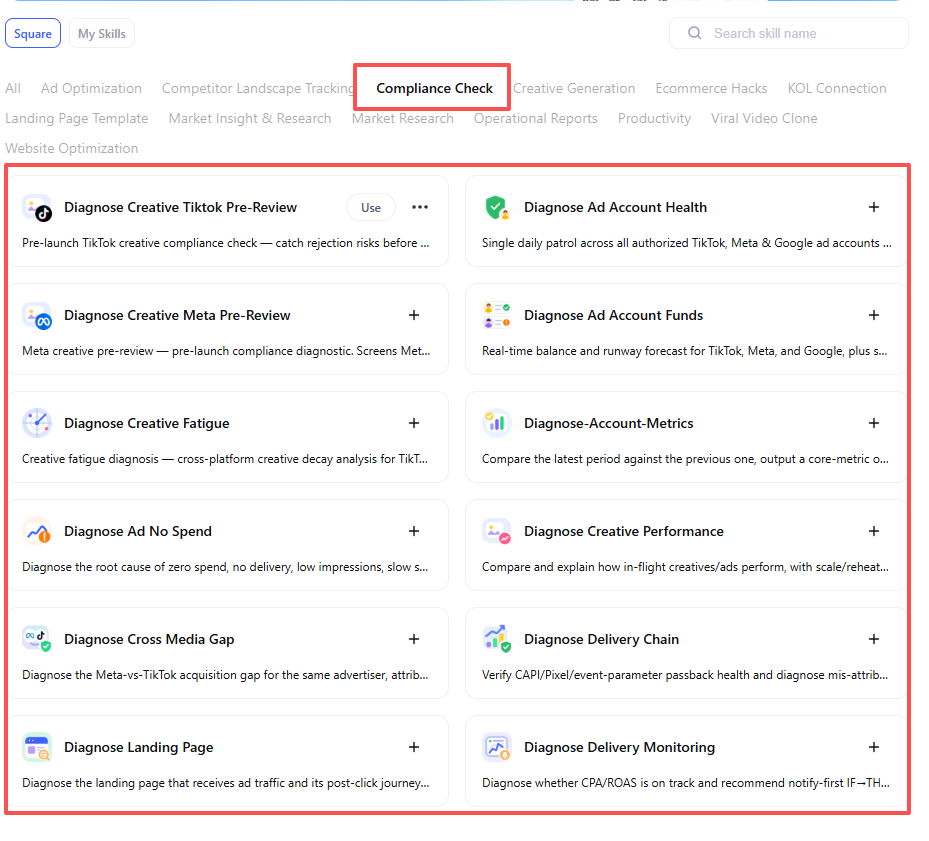
The output prioritized observable blockers before auction changes:
- A snapshot taken two hours before its start showed
Pending / To be delivered, explaining why delivery had not begun.
- After a URL and video edit,
Review for modificationwas the observed blocker; further edits and budget changes should wait while it remains pending.
- One Active Campaign contained an Ad group marked
Out of ad group budgetafter its fictional $300 lifetime budget was spent. This was the immediate confirmed blocker, though others could surface later.
- One low-spend fictional input showed $4.80 in spend against a $120 daily budget.
Too Narrow, a fictional $5 Target CPA, Learning, recent edits, and Purchase showingNo recent activityremained clues—not one proven cause. The supplied $18 historical CPA was not independently verified as fully comparable.
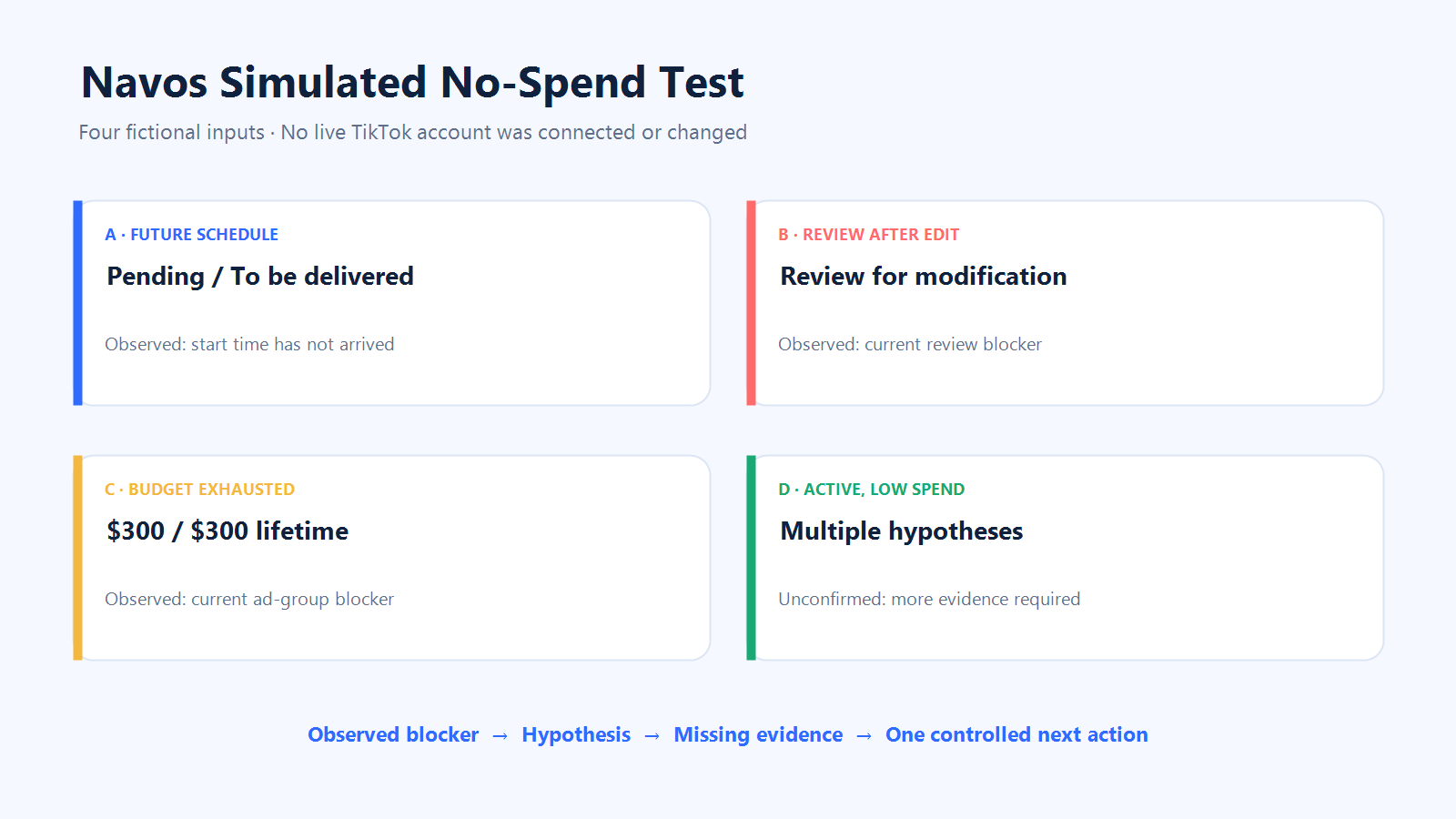
The fourth case is the key boundary: the output kept several possibilities as hypotheses because the supplied snapshot did not contain enough evidence to confirm one cause.
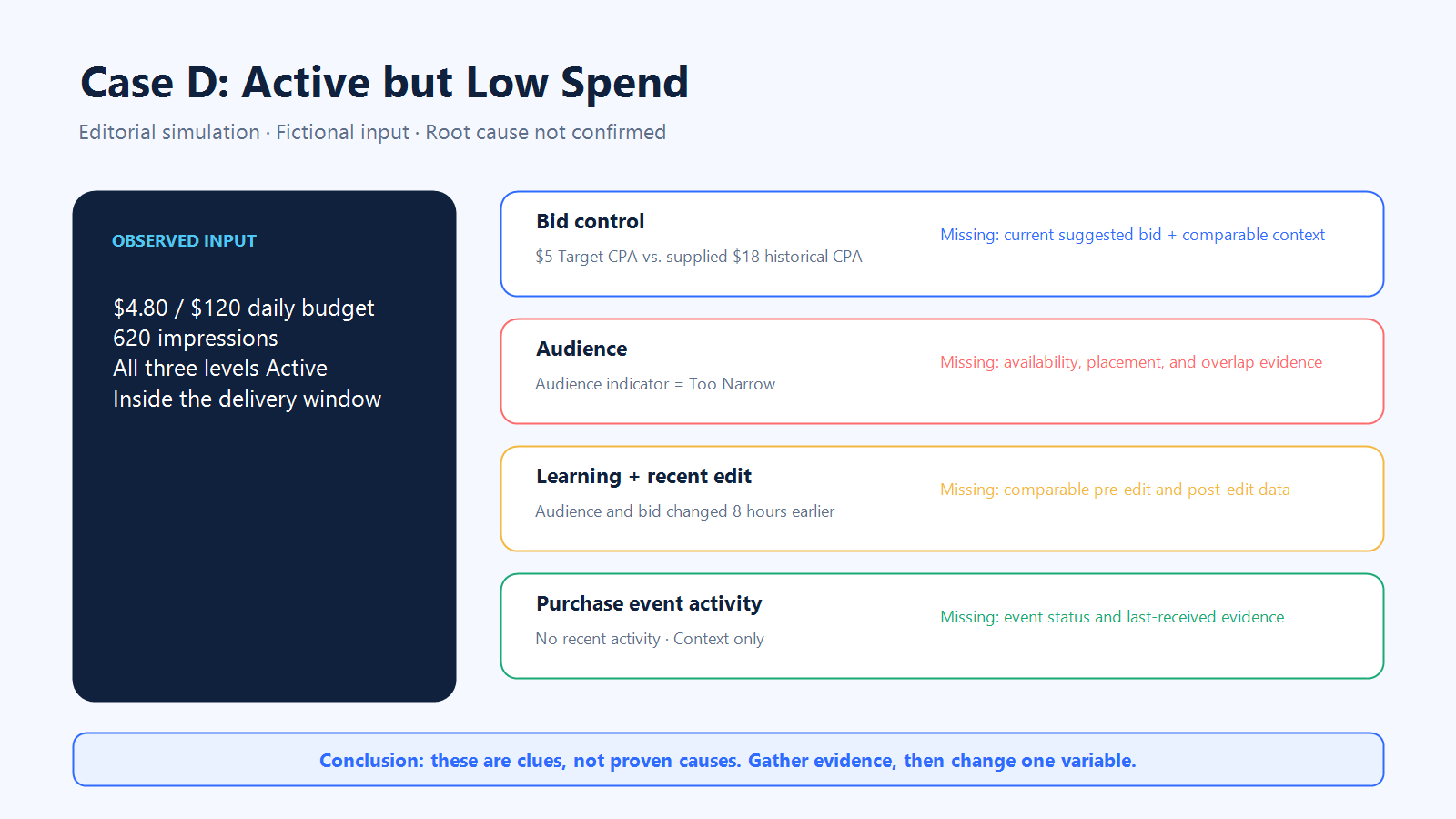
Treat any incomplete field as Unknown. The resulting workflow separates observed blockers, unresolved hypotheses, missing evidence, and one controlled next action.
This analyzed supplied fictional inputs, not a connected account. Verify every recommendation against current Ads Manager evidence before acting.
A One-Variable Recovery Log
Before you edit, save the evidence. Then change one variable and evaluate the result that matters for the confirmed status—not a generic promise about how quickly spend should return.
Timestamp/account timezone | Object and ID | Saved status evidence | One change | Why this change | Observation window | Result | Next decision |
Status-specific |
The observation window should follow the current platform state and your team’s decision cadence. A review case, future schedule, payment issue, and low-delivery auction case do not share one universal waiting period.
When to Stop Editing and Escalate
Stop making campaign changes and prepare an evidence pack when:
- the platform status remains unresolved after you complete its stated action;
- payment, suspension, account review, policy, asset, qualification, or permission problems require platform support;
- reporting and billing evidence disagree; or
- the interface does not provide enough evidence to distinguish the remaining hypotheses.
Include the affected account and object IDs, exact status text, Secondary Status, timestamps and timezone, screenshots, Change Log entries, and relevant billing evidence. A clean evidence pack gives support a reproducible problem instead of a narrative assembled from memory.
Frequently Asked Questions
Why is my TikTok ad Active but not spending?
Active may apply only to the Campaign. Check child statuses, reporting scope, schedule, usable balance, budget, review, and asset eligibility.
What is the difference between not spending and Not Delivering?
Not spending is a symptom. Not Delivering is a platform status that may include a reason and next action.
Why is my TikTok ad approved but still at $0 spend?
Approval clears one blocker only. Schedule, child status, balance, budget, auction setup, or event evidence may still matter.
How long should I wait before changing a new TikTok ad?
There is no universal wait. Follow the status and save a baseline. TikTok says most ads are reviewed within 24 hours, although some take longer.
Why did a campaign that was spending suddenly stop?
Compare the last healthy and first affected periods. Check balance, budget, schedule, review, creative eligibility, account state, and Change Log.
Can the wrong date range, account timezone, or selected object make spend appear as zero?
Yes. Confirm account, object, dates, and account timezone, then cross-check the result with billing evidence.
Can a restrictive Target Cost per Result limit delivery?
It may constrain delivery. Clear blockers first, then compare the control with suggested-bid and historical evidence before one test.
Should I duplicate the campaign when TikTok ads are not spending?
Not by default. Duplication creates another object and makes before-and-after comparison harder. Use it only as a controlled test with a clear hypothesis.
What TikTok Ads budget should I check?
Check Campaign and Ad-group budgets, daily versus lifetime settings, and spend. Minimums are setup rules, not delivery guarantees.
Does this checklist apply to Promote or GMV Max?
No. This is for standard auction campaigns. Promote and GMV Max use separate workflows.
Final Checklist
When TikTok ads are not spending, follow this order:
- Confirm the account, object, date range, timezone, Spend, and Impressions.
- Save Campaign, Ad group, and Ad Status plus Secondary Status.
- Clear account, review, policy, asset, schedule, balance, and budget blockers.
- Only then evaluate bid, audience, placements, learning, creative, and event evidence.
- Change one variable, preserve the result, and escalate with an evidence pack when the platform state remains unresolved.
For a structured second pass, download Navos Desktop, go to Square → Compliance Check → Diagnose Ad No Spend, and paste sanitized status and performance fields. Use the output to organize observed blockers, hypotheses, and missing evidence—then verify every proposed action in the live account before changing it.