
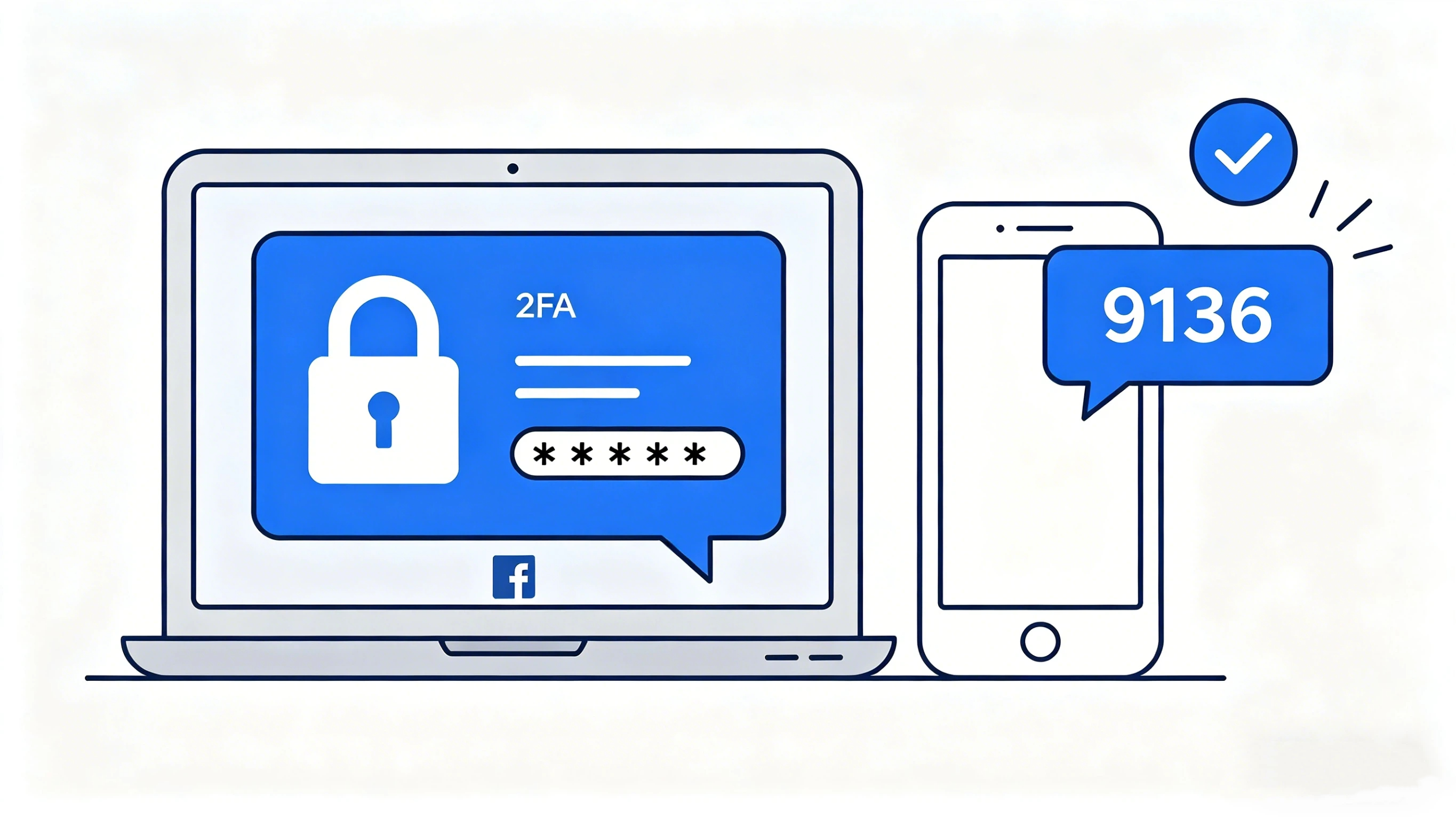
In today's digital advertising landscape, your Meta (Facebook) ad account is the engine driving your business's traffic and revenue. But for many advertisers, two-factor authentication (2FA) — while great for security — can become a frustrating roadblock.
Whether you're locked out because you lost your phone, struggling with delayed SMS codes, or managing multiple Business Manager (BM) accounts across a team, knowing how to remove 2 factor authentication Facebook Ads Manager is a skill every advertiser eventually needs.
This guide covers everything: the exact steps, why you might not be able to turn it off, and smarter alternatives that keep you secure without the hassle.
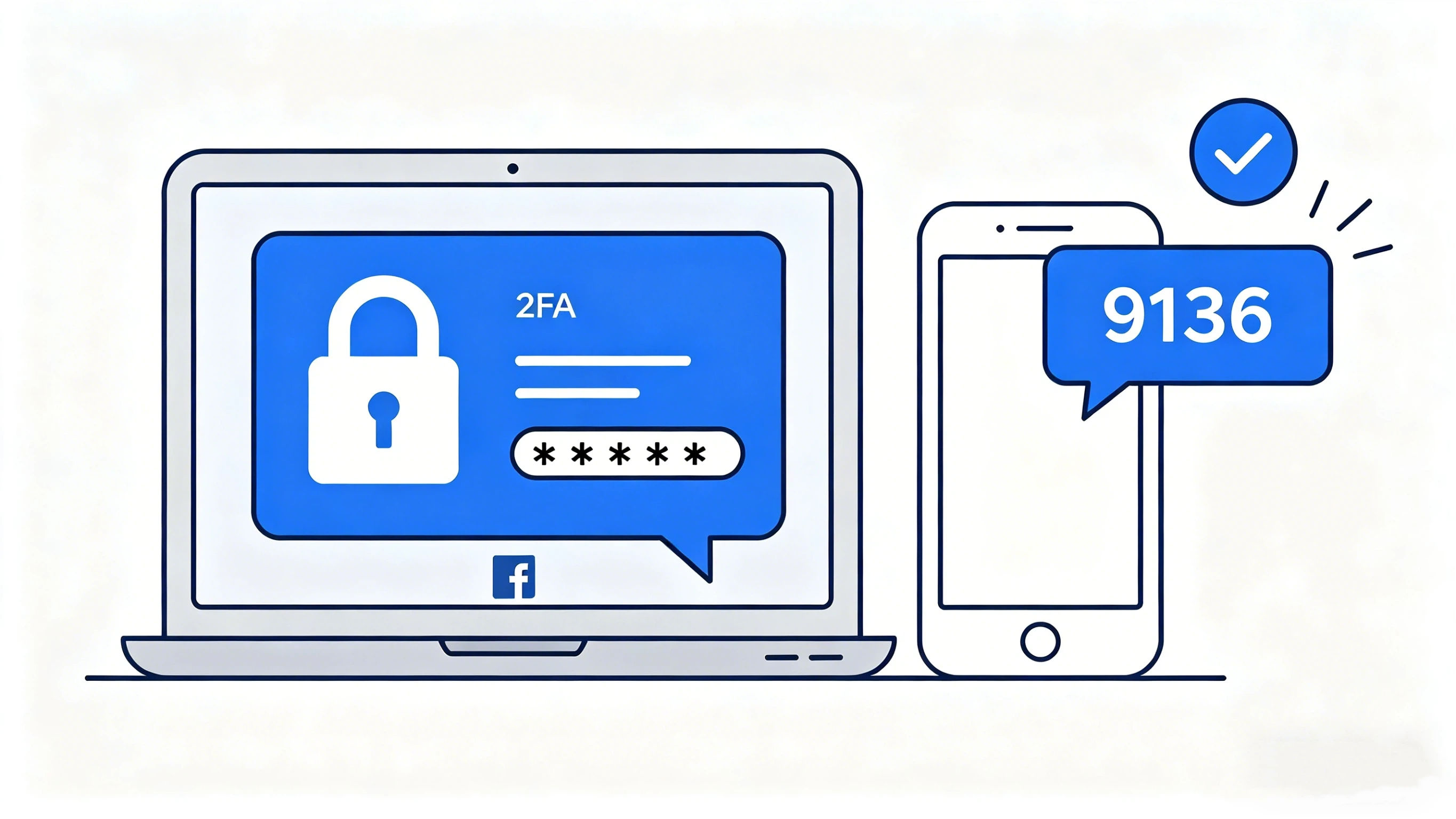
Can You Remove 2 Factor Authentication on Facebook Ads Manager?
Quick Answer:
- When you can disable it: If your personal Facebook account has not been required to undergo security verification by any Business Manager, you can remove two-factor authentication through your personal security settings.
- When you cannot disable it: If the Business Manager you belong to has enabled “Require 2FA for Everyone,” or if your account has been flagged by Meta as requiring enhanced protection (Facebook Protect), you cannot remove two-factor authentication.
Before diving into the steps, it's important to understand that you can't always turn off Facebook two-factor authentication — it depends on two things:
- Your personal Facebook account settings
- Your Business Manager's security policies
Here's the breakdown:
Scenario | Can You Disable 2FA? |
Personal ad account, no BM attached | ✅ Yes — directly in account settings |
BM has "Require 2FA for everyone" enabled | ❌ No — requires BM admin to change policy |
Account under Facebook Protect program | ❌ No — mandatory for protected accounts |
Account flagged by Meta's risk system | ⚠️ Temporarily — may be re-enforced on next login |
Bottom line: Whether you can disable 2FA isn't just about your preference — it's about what your BM allows.
Why There is 2 Factor Authentication?
Meta imposes stricter security requirements on “advertising accounts” for the following reasons:
- Advertising accounts involve payment methods (credit cards, PayPal, billing information);
- Advertising assets include data such as pixels, catalogs, and audiences;
- Account compromise could result in significant financial loss and data breaches;
- The platform’s risk control system triggers stricter security policies in response to “unusual logins, frequent device changes, or abnormal IP activity.”
Therefore, for high-risk accounts (such as those with high spending, managing large amounts of assets, or with a history of compromise), even if Business Manager does not require it, Meta’s algorithm may recommend or semi-mandate that you enable 2FA during certain periods (for example, if your account is deemed high-risk). In such cases, even if you manually disable it, the system will prompt you to re-enable it the next time you log in.
How to Remove 2 Factor Authentication (Step-by-Step)?
Method 1: Turn Off 2FA via Personal Facebook Settings
Use this method if your account isn't tied to a BM that mandates 2FA.
Step 1: Open Facebook Settings
- Desktop: Click your profile photo (top right) → Settings & Privacy → Settings
- Mobile app: Menu (☰) → Settings & Privacy → Settings
Step 2: Go to Accounts Center
In the left sidebar, click Accounts Center (Meta's unified settings hub), then select Password and Security.
Step 3: Find Two-Factor Authentication
Scroll to and tap Two-Factor Authentication.
Step 4: Select Your Account
Choose the Facebook account you want to modify.
Step 5: Verify Your Identity
Meta will send a code to your email or ask you to re-enter your password. This confirms you're the account owner.
Step 6: Turn Off Two-Factor Authentication
You'll see your currently active methods:
- Authentication app (Google Authenticator, Authy, etc.)
- Text message (SMS) or WhatsApp
- Security key
- Backup codes
Click Turn Off above the enabled method(s).
Step 7: Confirm
A risk warning will pop up. Review it and confirm to disable.
Pro tip:
Before turning off 2FA, save your backup codes. If you're switching devices or lost your phone, backup codes are your lifeline back into your account.
Method 2: Disable 2FA Facebook Ads Through Business Manager (Admins Only)
If Method 1 didn't work — the toggle was greyed out or 2FA re-enabled itself — your BM is the culprit.
Step 1: Open Business Settings
Navigate to Business Settings in Meta Business Suite.
Step 2: Access the Security Center
In the left navigation panel, scroll to the bottom and find Security Center (or Security settings, depending on your BM version).
Step 3: Review the 2FA Policy
Look for the setting labeled "Require two-factor authentication for everyone" or similar.
- If enabled: Every member in this BM must have 2FA active. You cannot turn it off at the individual level.
- If disabled: Members can choose whether to enable 2FA (subject to Meta's risk-based enforcement).
Step 4: Modify the Policy
As an admin, change the policy from "Everyone" to "Admins only" or "Nobody".
Step 5: Refresh Member Sessions
Policy changes don't always sync instantly. Ask affected team members to log out and log back in, then retry Method 1.
⚠️ Only BM admins can modify this setting. If you're an employee, advertiser, or analyst role, contact your BM's super admin.
Why Can't I Turn Off Facebook Two-Factor Authentication?
If you're still stuck, here are the most common blockers:
1. BM Security Policy Is Locked
This is the #1 reason. If your agency manages multiple clients' BMs and even one of them has enforced 2FA, your personal account must maintain active 2FA — or you lose access to that BM entirely.
2. Insufficient Admin Permissions
Roles like "Employee," "Advertiser," or "Analyst" in BM don't have permission to change security policies. You'll need someone with Admin or Super Admin access.
3. Facebook Protect Program
Meta runs a program called Facebook Protect that targets accounts managing high-reach Pages or significant ad spend. If enrolled, 2FA is non-negotiable — it's essentially a platform-mandated security requirement.
4. Suspicious Login Activity Triggered Protection
Frequent IP changes (common for users on VPNs), new device logins, or geographic anomalies can cause Meta's automated system to temporarily lock your ability to modify security settings. Wait 24-48 hours after stabilizing your login patterns before trying again.
What to Do If You're Locked Out of 2FA?
Sometimes the problem isn't that you want to disable 2FA — it's that you can't complete it because you lost your verification device.
Here's how to recover access:
- Contact your BM admin: Another admin can generate a temporary recovery code for your account. Go to Users → Select your name → Generate recovery code.
- Use backup codes: If you saved your 10-digit backup codes when you first enabled 2FA, now's the time to use one.
- Submit identity verification: As a last resort, you can submit a government-issued ID (passport, driver's license) to Meta for account recovery. Expect 24-48 hours for review, and your ad account access may be limited during this period.
The Risks of Disabling 2FA on Your Ad Account
Before you remove 2 factor authentication Facebook Ads Manager, understand what you're giving up. Ad accounts are far higher-value targets than personal profiles:
🚨 Ad Fraud and Unauthorized Spending
Ad accounts have payment methods attached (credit cards, PayPal). A compromised account can run up massive charges in hours — hackers typically blast high-budget campaigns promoting illicit products before you even notice.
🚨 Payment and Billing Data Exposure
Your BM contains company addresses, tax information, billing contacts, and invoice history. A breach isn't just a money problem — it's a compliance and data security issue.
🚨 Loss of Core Advertising Assets
For e-commerce and growth teams, your Pixel, product catalogs, custom audiences, and lookalike audiences represent months or years of optimization. A bad actor can delete your Pixel, corrupt your catalog, or transfer audience data — erasing your competitive advantage overnight.

Smarter Alternatives to Completely Removing 2FA
If the friction of 2FA is what's driving you here, consider these alternatives that balance security with usability:
Alternative | Why It's Better |
Switch to an authenticator app | SMS codes suffer carrier delays. Apps like Google Authenticator or Authy work offline and let you export keys when switching devices. |
Add multiple BM admins | With at least two admins, one person's 2FA issues won't lock out the entire team. |
Enable "trusted devices" | Check "Don't ask for codes on this device" on your work computers. You'll skip daily 2FA prompts while staying protected from unknown logins. |
Use Authy with cloud sync | Authy syncs across devices so you're never locked out if you lose one phone. |
Frequently Asked Questions
1. How do I turn off two-factor authentication on Facebook Ads Manager?
If your BM hasn't enforced 2FA, you can disable it in under 2 minutes through your personal Facebook settings. If BM enforcement is active, you'll need an admin to change the policy — which can take anywhere from minutes (if they're available) to days (if you need to contact an external agency).
2. Why does Facebook require 2FA for ad accounts?
Ad accounts handle real money, sensitive business data, and valuable advertising assets (Pixels, audiences, catalogs). Two-factor authentication dramatically reduces the risk of account takeover through phishing, credential stuffing, or brute-force attacks. Meta's risk engine often mandates 2FA for accounts with higher ad spend or elevated risk profiles.
3. Can I still run ads without 2FA enabled?
It depends. If your BM has a mandatory 2FA policy, or if Meta's risk system flags your account, you may be blocked from accessing Business Manager or performing sensitive ad operations until 2FA is enabled. If neither applies, you can continue advertising with 2FA disabled — though it's not recommended.
4. What should I do if I lost my 2FA device?
First, check for alternative verification methods: backup codes, SMS to a secondary number, a second logged-in device, or a connected authenticator app. If you still have access on any device, immediately add a new 2FA method and generate fresh backup codes before removing the old one. If you're completely locked out, you'll need to go through Meta's identity verification process.
Conclusion
Learning how to remove 2 factor authentication Facebook Ads Manager is straightforward — the real challenge is balancing security with convenience.
If you're in a team environment, optimizing your 2FA setup (authenticator apps, multiple admins, trusted devices) is almost always a better choice than disabling it entirely. If you do decide to turn off Facebook two-factor authentication, make sure your password is strong, unique, and that you're monitoring your ad account's spending regularly.
In Meta's ecosystem, compliance and security aren't optional — they're the foundation of sustainable advertising. Handle 2FA smartly, and it'll protect you instead of getting in your way.